
 5 Mins Read

24/7 Lead Generation: How to Capture Visitors While You Sleep
It’s 11:47 PM. Someone is on your website. They’ve read your services, checked your pricing, and they’re seriously considering reaching...

How AI chatbot Calendly integration actually works, why booking inside the chat converts better than sending a link, and how to set it up without double-bookings or time-zone mix-ups.

| WHAT THIS GUIDE COVERS This guide explains what it means to connect Calendly to an AI chatbot, why letting a visitor book directly inside the conversation converts better than handing them a link, and how the integration actually works behind the scenes. It closes with a practical setup process and the mistakes that most often cause double-bookings or missed meetings. |
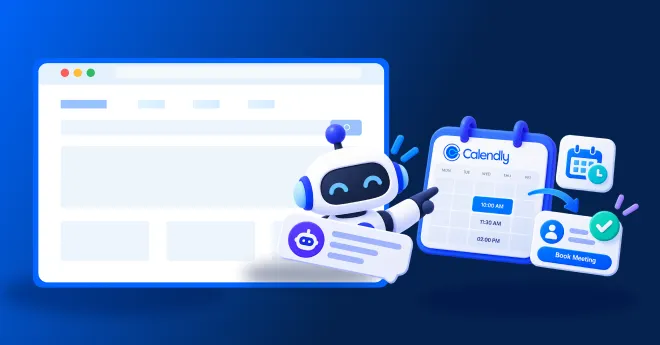
Calendly chatbot integration connects a website chatbot directly to a Calendly account, so a visitor can see available time slots and confirm a meeting without ever leaving the conversation. Instead of the chatbot saying “here’s a link to book a time,” it shows the actual availability and books the slot on the spot.
This is different from a chatbot that simply pastes a Calendly link into the chat window. A true integration pulls real-time availability, handles time zone conversion automatically, and writes the booking back to both Calendly and, in most setups, a CRM — all without the visitor opening a second tab.
Every extra step between “I’m interested” and “meeting booked” loses some share of visitors. Research from Drift, compiled by SchedulingKit, found that booking conversion runs 35% higher when scheduling happens inside a chatbot conversation rather than through a separate link or page.

Speed compounds that gap. The average chat-based booking takes under 60 seconds to complete, compared to 2 to 3 minutes for a typical form-based booking flow, according to GetApp data compiled by Boei. Scheduling chatbots also capture 42% more after-hours bookings than a plain calendar link left on a page, since the conversation itself prompts the visitor to book rather than relying on them to remember later.

Source:Drift After-Hours Report, via SchedulingKit 2026
A visitor who’s ready to talk shouldn’t have to open Calendly separately, check their own calendar, and come back to confirm. Every one of those steps is a chance for intent to cool off.
The mechanics are consistent across most modern platforms, even though the interface varies.

Because the chatbot reads live availability rather than a static list of times, a slot that gets booked elsewhere, say, directly through Calendly by another visitor — disappears from the chatbot’s options immediately, which is what prevents double-booking.

Most platforms follow a similar sequence to get from “chatbot installed” to “visitors booking meetings automatically.”
Connect your Calendly account
Authenticate the chatbot platform against Calendly, usually a one-click OAuth connection rather than an API key to manage manually.
Choose which event type the chatbot books
Point it at a specific Calendly event — a 15-minute discovery call, for instance — rather than your entire calendar, so visitors only see meeting types meant for new leads.
Decide when the chatbot offers a booking
Set the trigger — after a visitor is qualified, or when they ask a specific question — so the booking prompt shows up at a natural point, not immediately on page load.
Set buffers and working hours
Confirm Calendly’s own buffer and availability settings carry through correctly, so the chatbot never offers a slot with no travel or prep time built in.
Map booking fields to your CRM
Make sure the visitor’s name, email, and any qualifying answers collected in chat land in the same CRM record as the booked meeting, not two disconnected entries.
Test time zone handling directly
Book a test meeting from a different time zone than your own to confirm the chatbot converts and displays the correct local time before launching live.
Asking too many questions before offering a slot
Benchmark data from Lunacal’s 2026 Calendar Scheduling Report found that intake forms with 3 to 5 fields are completed at 71%, dropping to 62% once a form asks for 6 to 8 fields. The same friction applies inside a chatbot — qualify enough to route the meeting correctly, then offer the calendar before the conversation drags on.
Source:Lunacal.ai, Calendar Scheduling Benchmarks Report 2026
Ignoring time zones by default
A chatbot that shows times in the business’s own time zone rather than the visitor’s creates confusion and no-shows. Confirm the integration converts automatically rather than displaying a fixed zone.
Skipping qualification and booking everyone
Not every visitor deserves a slot on a rep’s calendar. Route the booking offer only to visitors who’ve passed some qualifying threshold, or the calendar fills up with meetings that were never going to close.
No fallback when nothing fits
If a visitor can’t find a time that works, the chatbot should offer an alternative — a different meeting type, a shorter call, or a “leave your availability” option — rather than a dead end.
Calendly is the most common calendar integration for lead-qualification chatbots, but it isn’t the only one. Most platforms in this category — including Corvexa — also support Google Calendar directly, and some support Cal.com or HubSpot Meetings. The setup steps above apply in roughly the same order regardless of which calendar tool sits behind the integration.

FAQ
Just a one-time authorized connection, typically through OAuth. The chatbot doesn’t need or store your Calendly password.
Not if the integration reads live availability. A properly connected chatbot removes a slot from its options the moment it’s booked anywhere else on the linked calendar.
No. The chatbot only shows open and blocked time as determined by your Calendly availability settings — it doesn’t display event titles or details from your calendar.
Yes. Most integrations let you point the chatbot at one specific Calendly event type, such as a short discovery call, rather than exposing your full calendar of meeting options.
A working integration detects or asks for the visitor’s time zone and displays available slots converted to their local time, then books the meeting correctly on both ends.
It depends on the chatbot platform — some integrations work with Calendly’s free tier, while others require a paid plan for API access. Check this specifically before assuming a free account will connect.
 Calendly Chatbot Integration: Turn Website Conversations Into Meetings

It’s 11:47 PM. Someone is on your website. They’ve read your services, checked your pricing, and they’re seriously considering reaching...
Quick summary Contact forms convert views into submissions at only around 9%, one of the lowest rates of any form...
Not every AI automation project needs to be a six-month enterprise overhaul. Some of the highest-value workflows to automate with...